/ How-to
How to export your GGPoker hand history
GGPoker doesn't keep a hand-history folder on your computer - everything lives inside PokerCraft, the built-in stats tool in the client. There's no "download everything at once" button either: if you played different formats (tournaments, Spin & Gold), download each section separately.
- 1Open the GGPoker client and sign in.
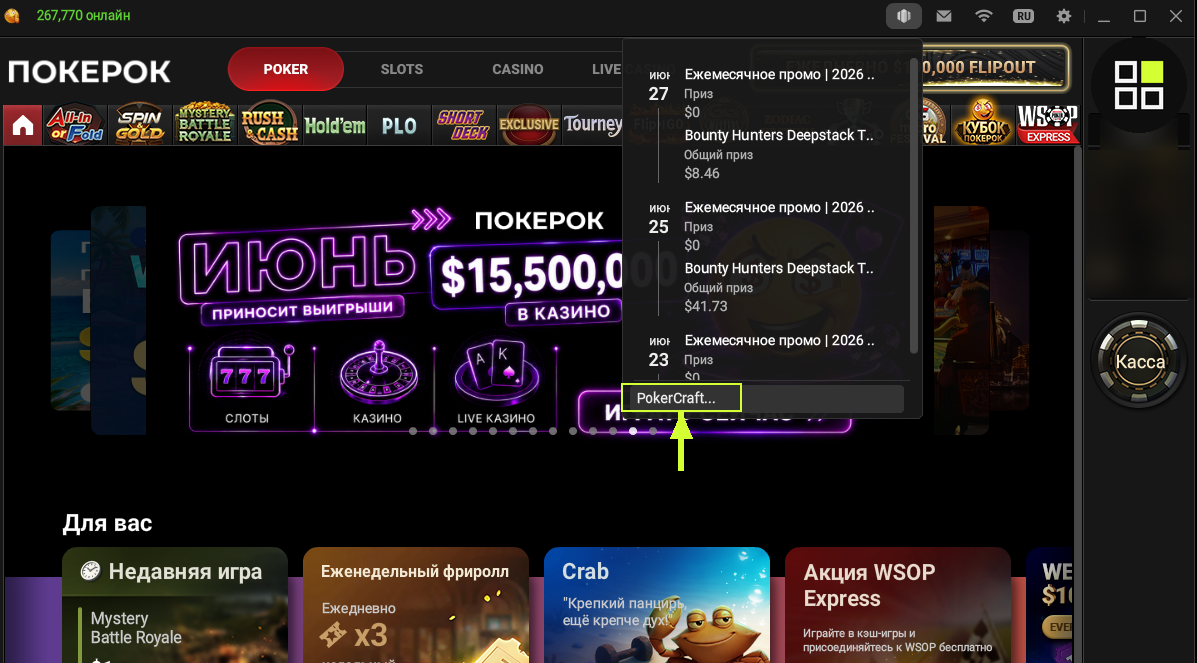
- 2At the top of the window find the history icon (a list/clock symbol) and click it - a panel of recent events opens.
- 3At the bottom of that panel click "PokerCraft…" - it's the analytics built into the client.
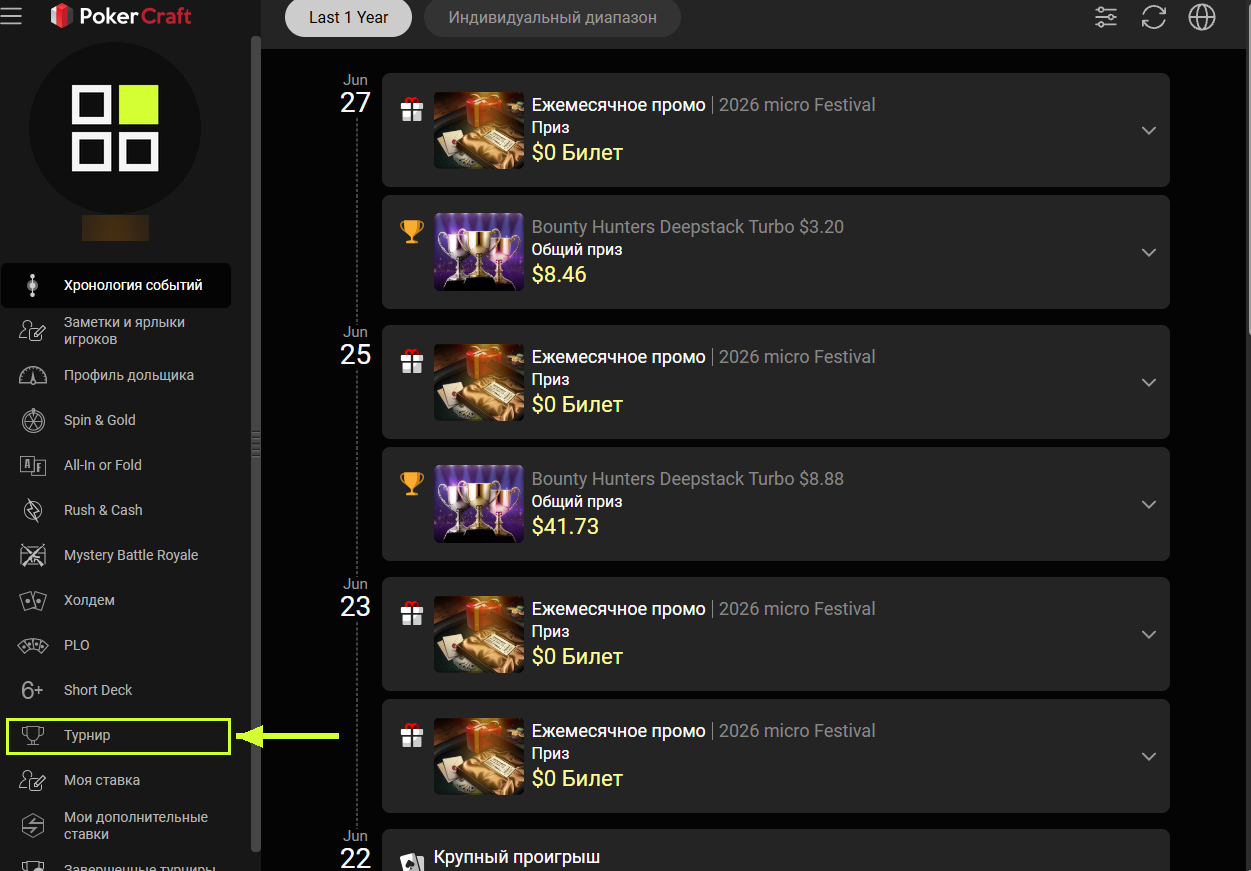
- 4In the PokerCraft window pick "Tournament" in the left menu - the list of tournaments you played appears.
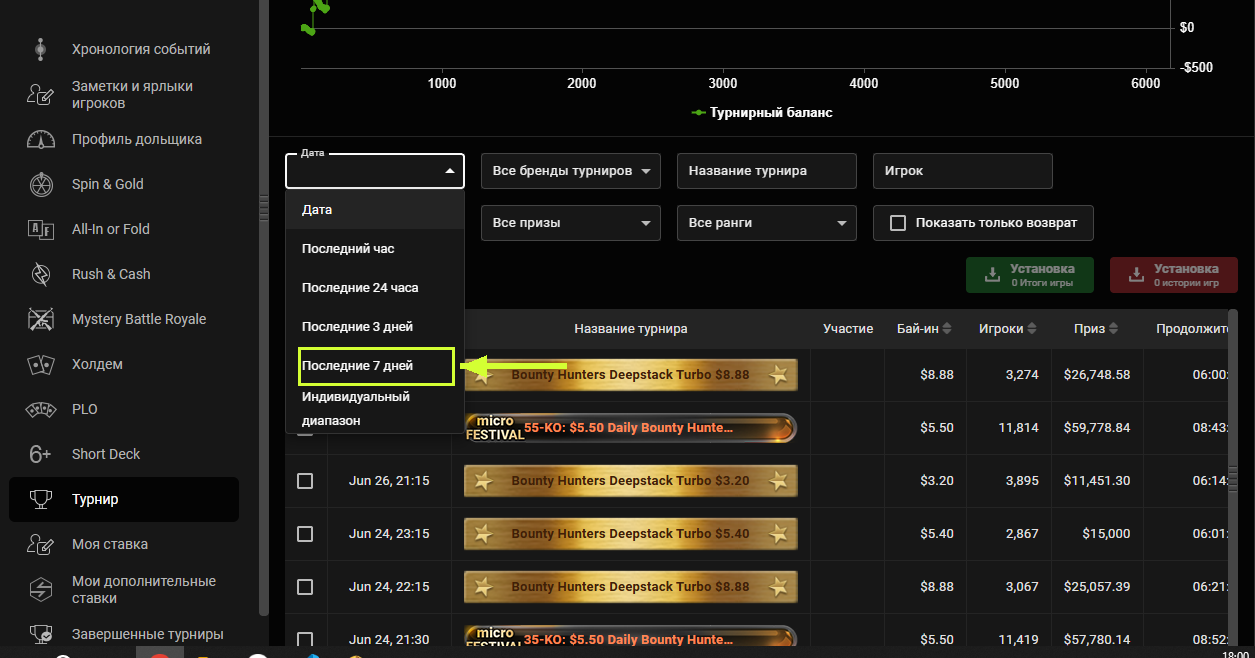
- 5At the top, in the "Date" filter, set a period (e.g. "Last 7 days") and click the red "SHOW" button.
- 6To the left of a tournament tick the checkbox (the checkbox at the column header selects all of them at once).
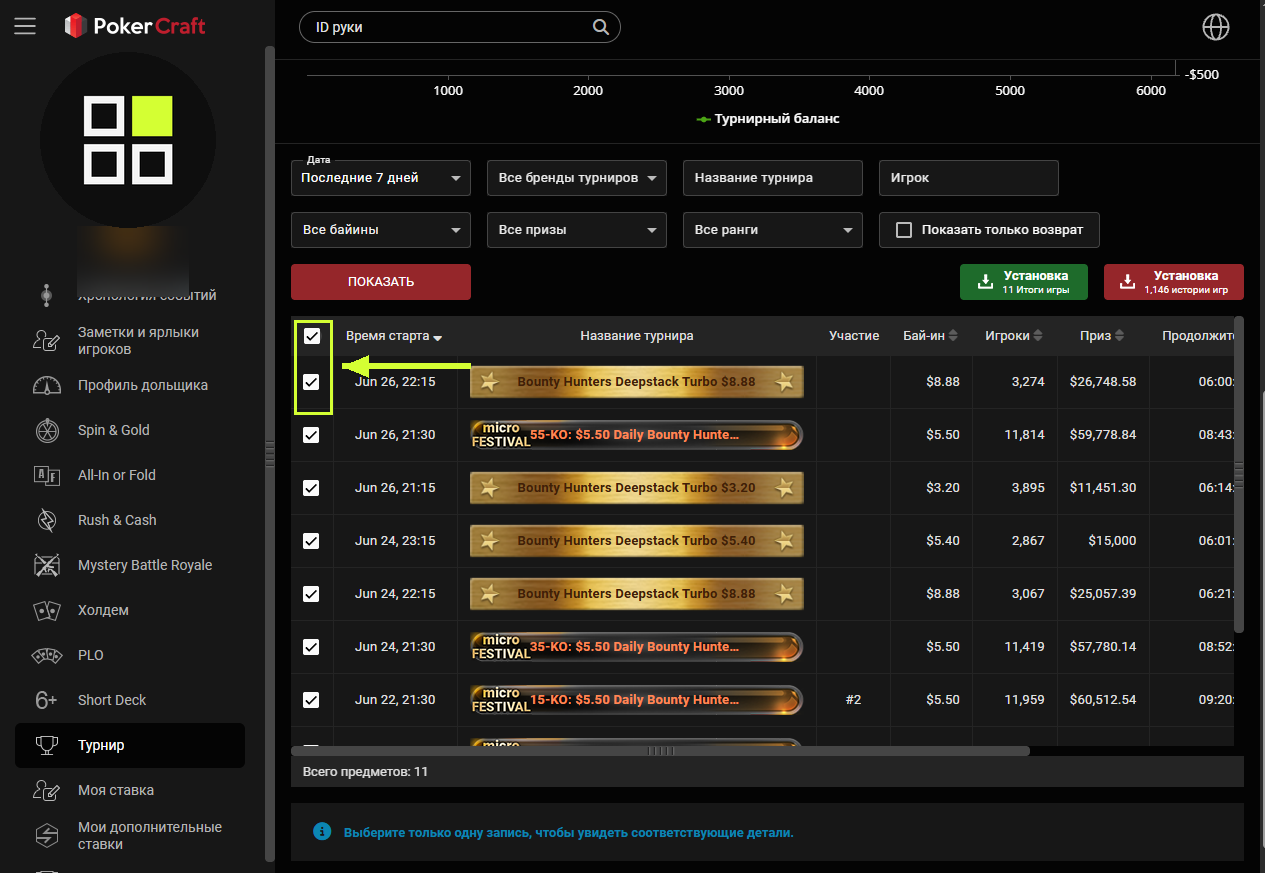
- 7Click the RED "Setup - game histories" button. The green "Game results" next to it is only the summary, not the hands - it won't work.
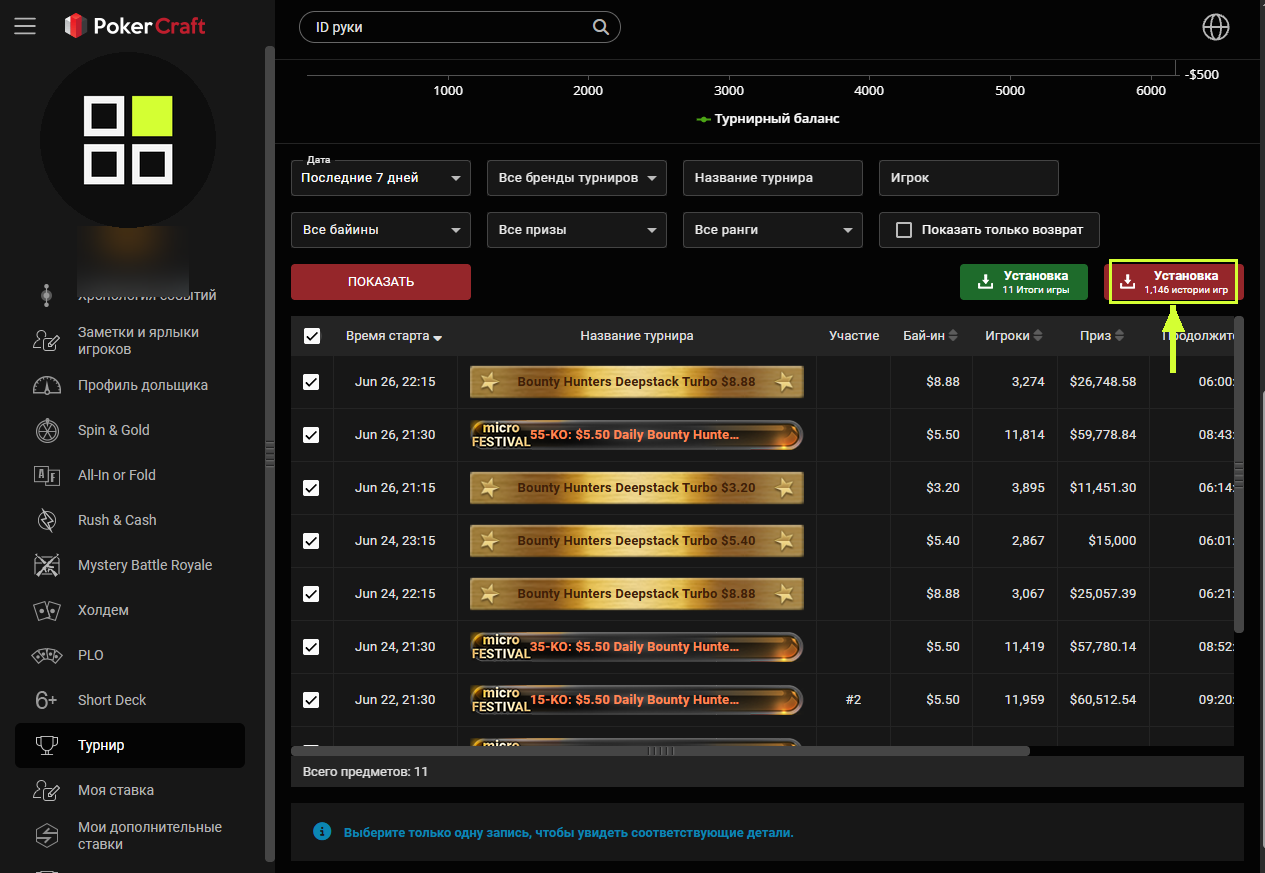
- 8A file downloads. If it's an archive (.zip) - unpack it, the .txt files are inside. Upload those to us.
You upload: .txt (sometimes inside a .zip - unpack it)
GGPoker has no "download everything at once" button. If you played different formats (tournaments, Spin & Gold), go through each section on the left separately.
Playing on other rooms too - all the guides are here
Found the files - upload a tournament, the first review is free.
Upload a tournament