/ How-to
How to export your hands
A review is built from the hand-history files from your poker client. It's nearly the same everywhere: you turn on history saving in the settings once, find the folder with the files, and upload them to us. The room is detected automatically, opponents' nicknames are anonymized, and the first tournament review is free. You can upload several files at once. Pick your room:
- How to export your GGPoker hand history
- How to export your PokerStars hand history
- How to export your PokerPlanets hand history
- How to export your Sisal hand history
- How to export your Winamax hand history
- How to export your 888poker hand history
- How to export your ACR / PokerKing / Black Chip hand history
- How to export your Red Star Poker / Betfair / Betsson hand history
- How to export your BetOnline / TigerGaming / SportsBetting hand history
GGPoker
- 1Open the GGPoker client and sign in.
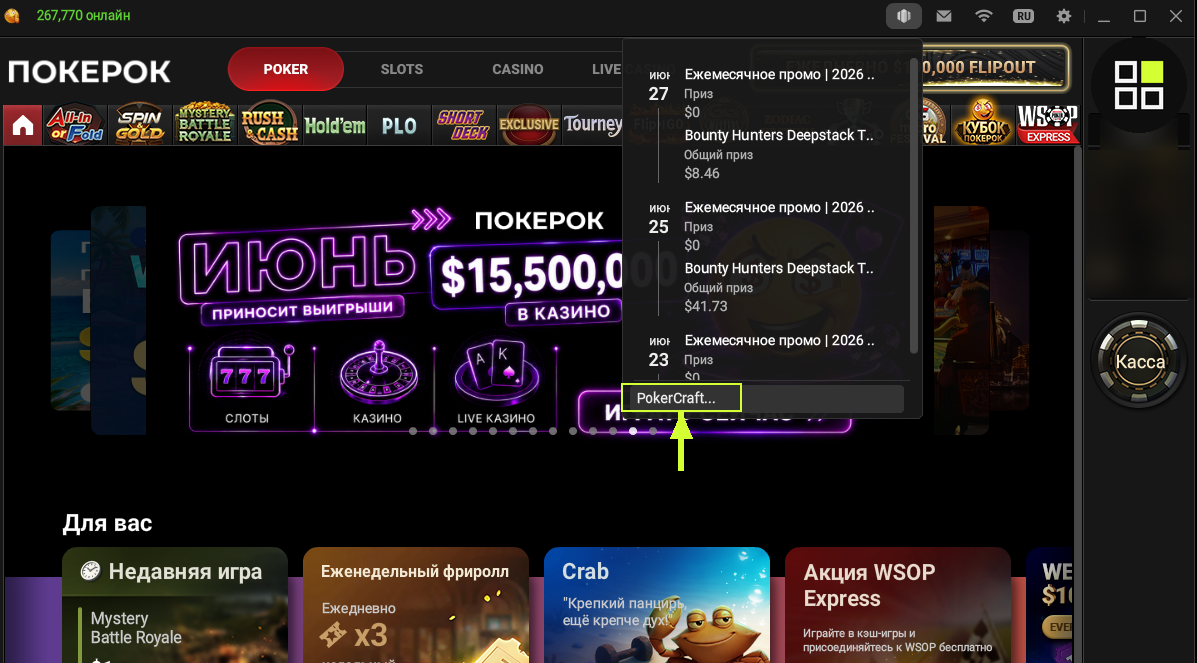
- 2At the top of the window find the history icon (a list/clock symbol) and click it - a panel of recent events opens.
- 3At the bottom of that panel click "PokerCraft…" - it's the analytics built into the client.
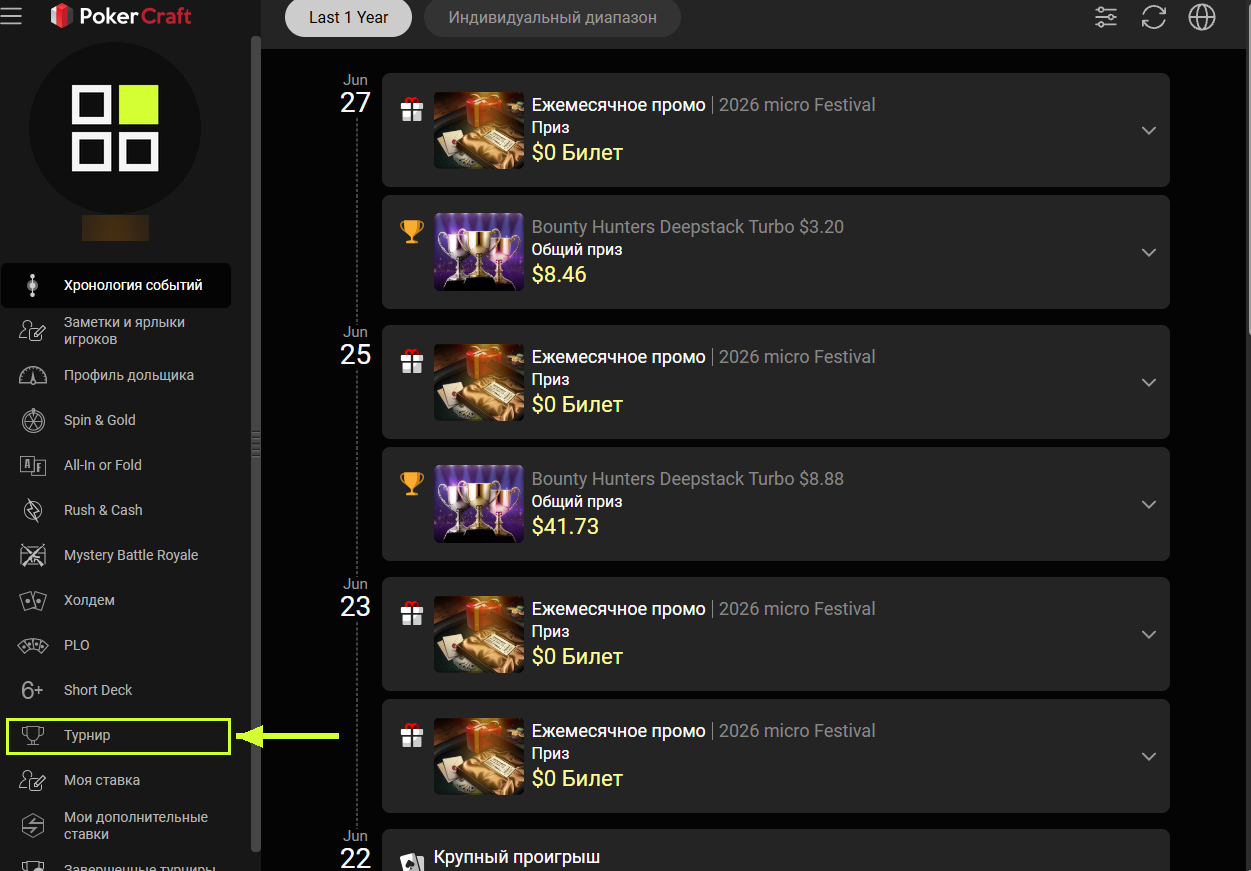
- 4In the PokerCraft window pick "Tournament" in the left menu - the list of tournaments you played appears.
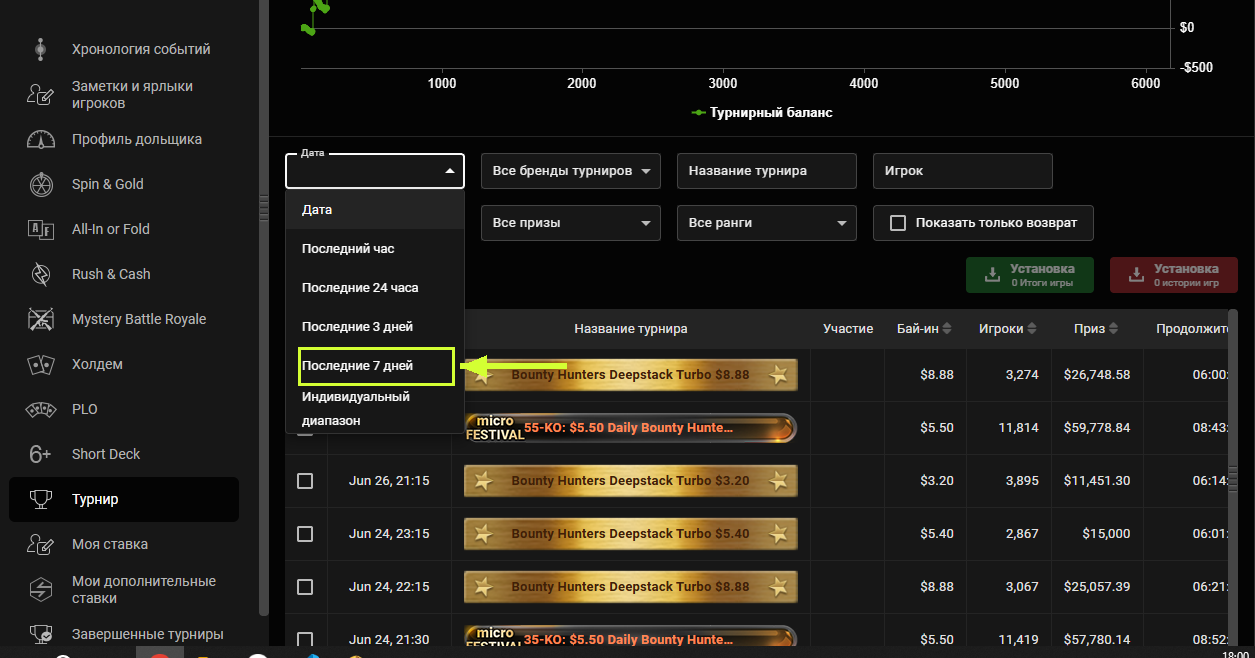
- 5At the top, in the "Date" filter, set a period (e.g. "Last 7 days") and click the red "SHOW" button.
- 6To the left of a tournament tick the checkbox (the checkbox at the column header selects all of them at once).
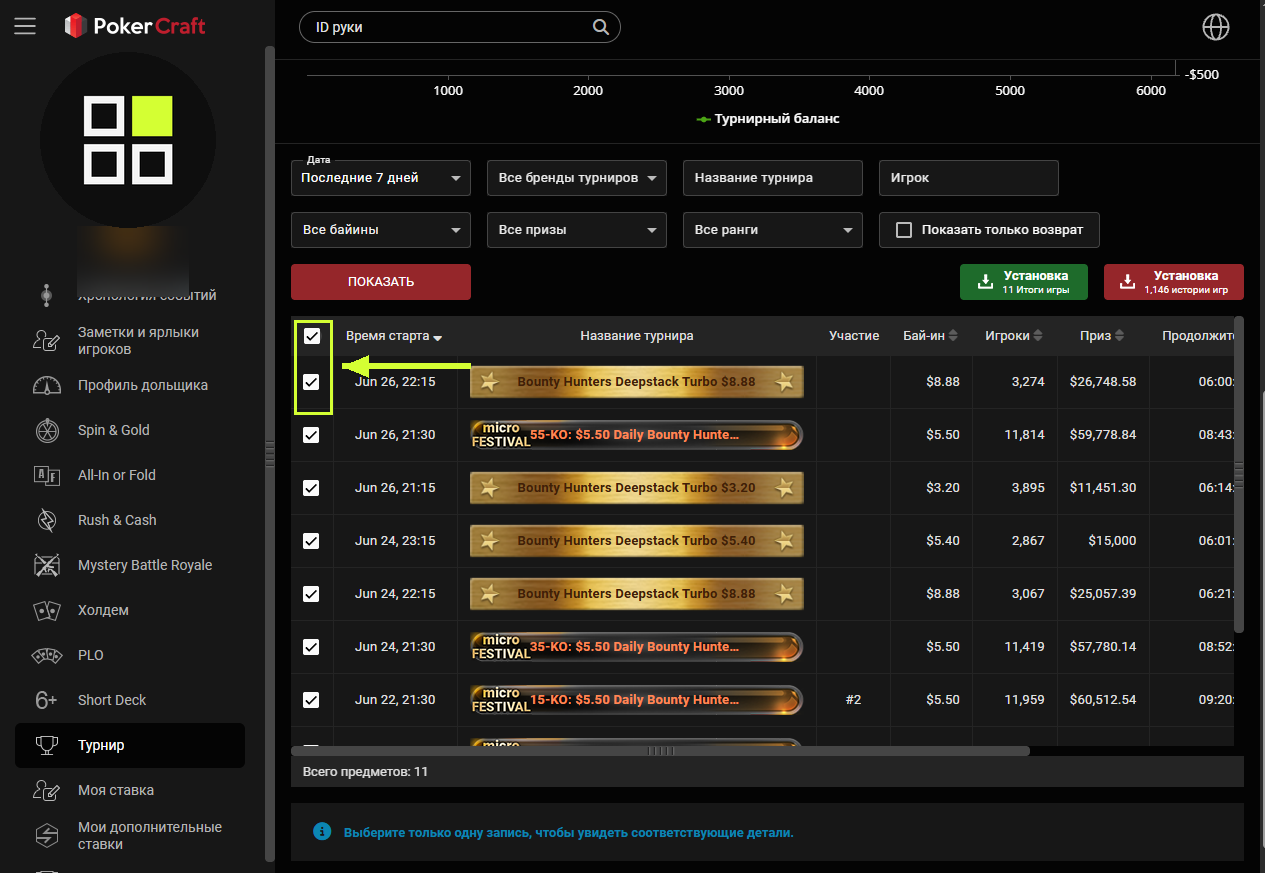
- 7Click the RED "Setup - game histories" button. The green "Game results" next to it is only the summary, not the hands - it won't work.
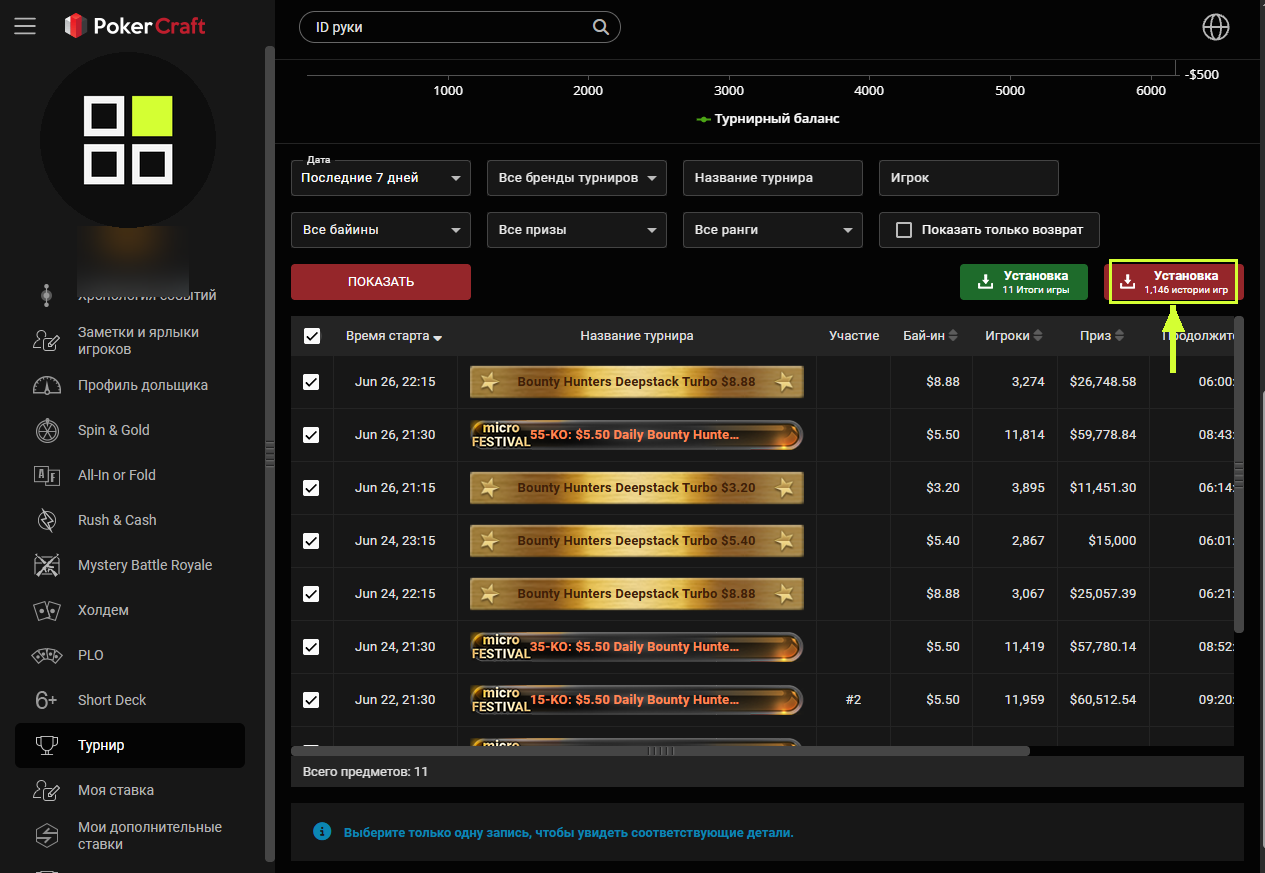
- 8A file downloads. If it's an archive (.zip) - unpack it, the .txt files are inside. Upload those to us.
You upload: .txt (sometimes inside a .zip - unpack it)
GGPoker has no "download everything at once" button. If you played different formats (tournaments, Spin & Gold), go through each section on the left separately.
PokerStars
- 1Open the PokerStars client and sign in.
- 2In the top menu open "Settings".
- 3On the left pick "Playing History" → "Hand History".
- 4Tick "Save My Hand History" - without it the files aren't written.
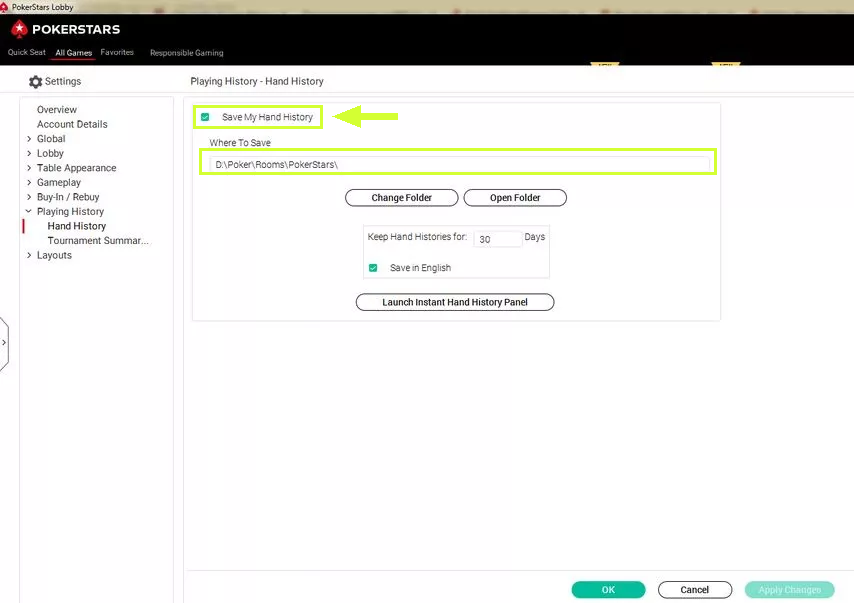
- 5Right there, the "Where To Save" field shows the folder with the files. Note it down (or click "Change Folder" and pick a convenient one).
- 6Open that folder on your computer and grab the tournament .txt files you need.
Folder with the files
The path is shown in "Where To Save" in the same settings
You upload: .txt
Want to see the hand right at the table - enable "Instant Hand History" in the table menu ("Table"). The history language doesn't matter, we read any.
PokerPlanetsformerly PokerStars Sochi
- 1Open the PokerPlanets client on your computer and sign in.
- 2Go to the client settings - usually a gear icon or a menu item in the lobby.
- 3Find the hand-history section (Hand History / Playing History) and turn on saving history to your computer.
- 4The folder where the client saves the files is shown right there - note it down (or set your own).
- 5Open that folder and grab the tournament .txt files.
Folder with the files
the folder you set in the client's hand-history settings
You upload: .txt
PokerPlanets is the former PokerStars Sochi, so the hands are in PokerStars format and we read them. The room is new, so the settings section may be named a bit differently - if a file isn't recognized, let us know.
Sisal
- 1Open the Sisal Poker client and sign in.
- 2In the client settings, find the game report / hand history section.
- 3Turn on saving hand history for tournaments and set the folder to save to.
- 4Open that folder on your computer and grab the tournament .txt files.
Folder with the files
the folder you set in the history settings
You upload: .txt
Sisal runs on the PokerStars engine (it used to run on the iPoker network) - if the settings section is named differently than described above, let us know and we'll fix it.
Winamax
- 1Open the Winamax client and sign in.
- 2In the top-left corner click the menu button (three bars).
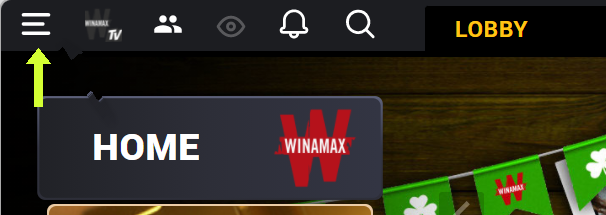
- 3In the menu pick "Options".
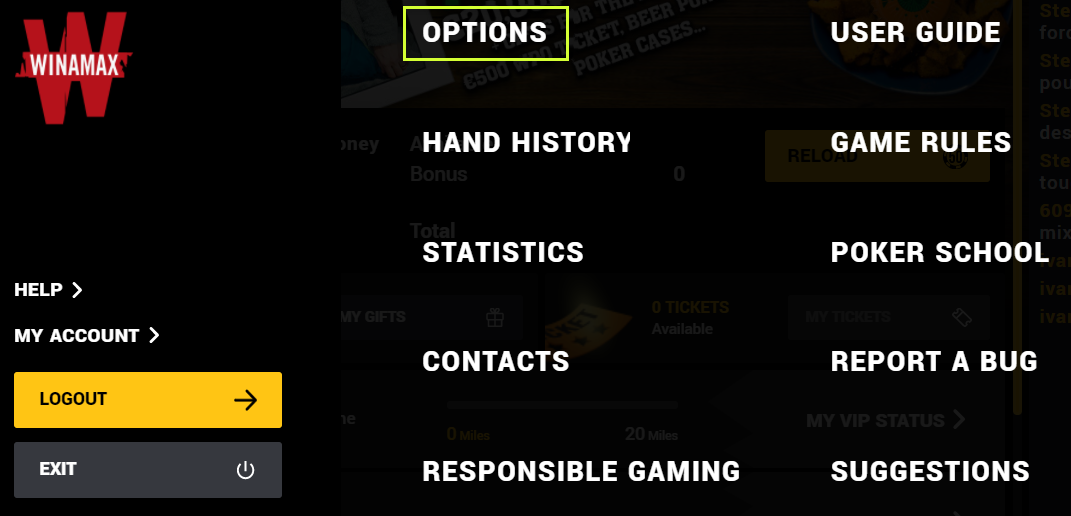
- 4In the list on the left open the "Tracker" section - the "Hand history file location" row shows the folder with your hand history. The "Open" button opens it.
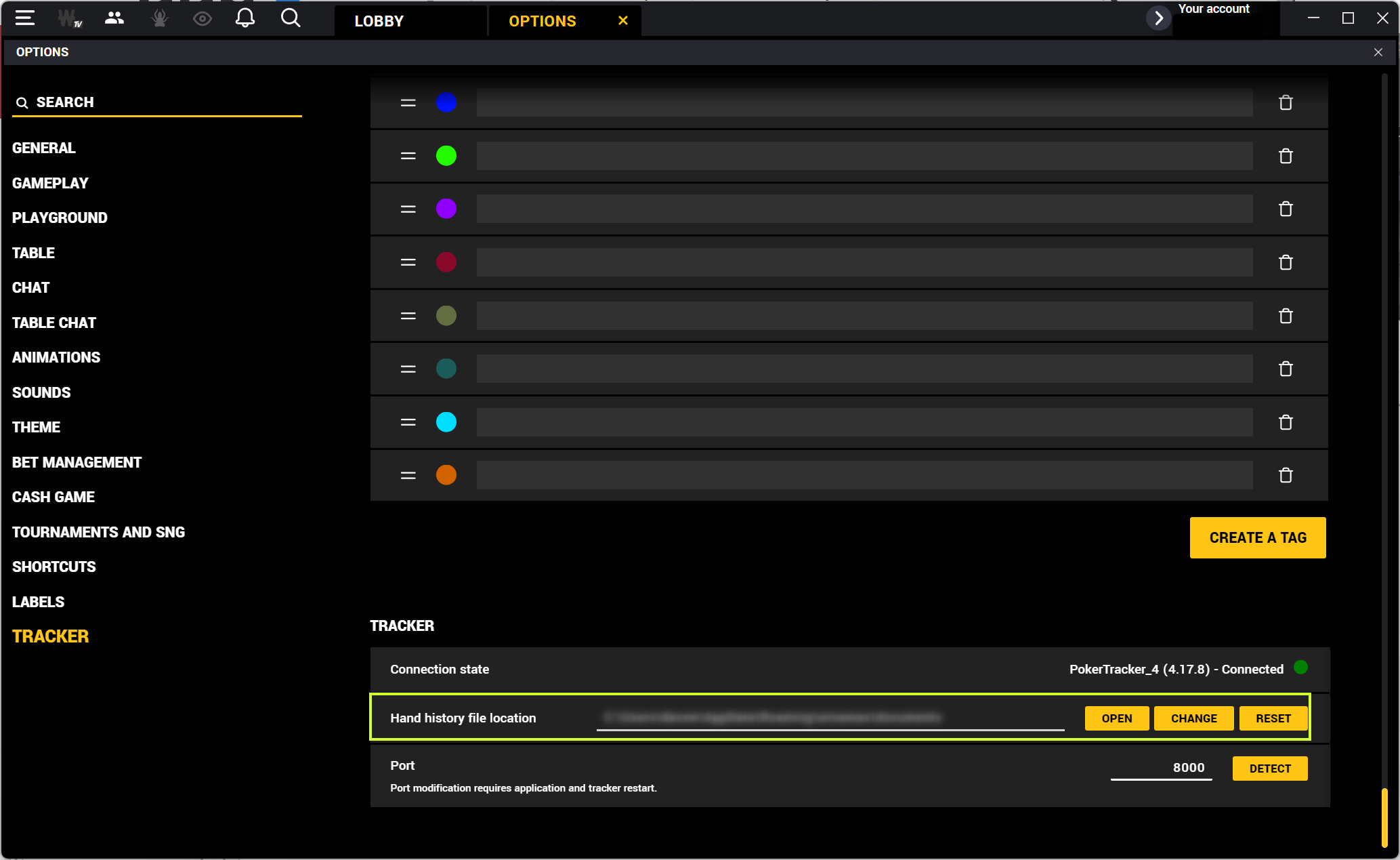
- 5Grab the tournament .txt files from that folder.
Folder with the files
AppData\Roaming\winamax\documents\accounts\[your nickname]\history
old client: Documents\Winamax Poker\accounts\[your nickname]\history
You upload: .txt
In the new client the history is saved to disk automatically - no checkbox needed. The old client has one: User Settings → Game settings → "Save My Hand History". Windows hides the AppData folder - in Explorer turn on "Show hidden items" (the "View" tab), otherwise you won't find it.
888poker
- 1Open the 888poker client (lobby) and sign in.
- 2Open "Settings" → "Game Settings".
- 3Tick "Keep my hand history in" - save the hand history.
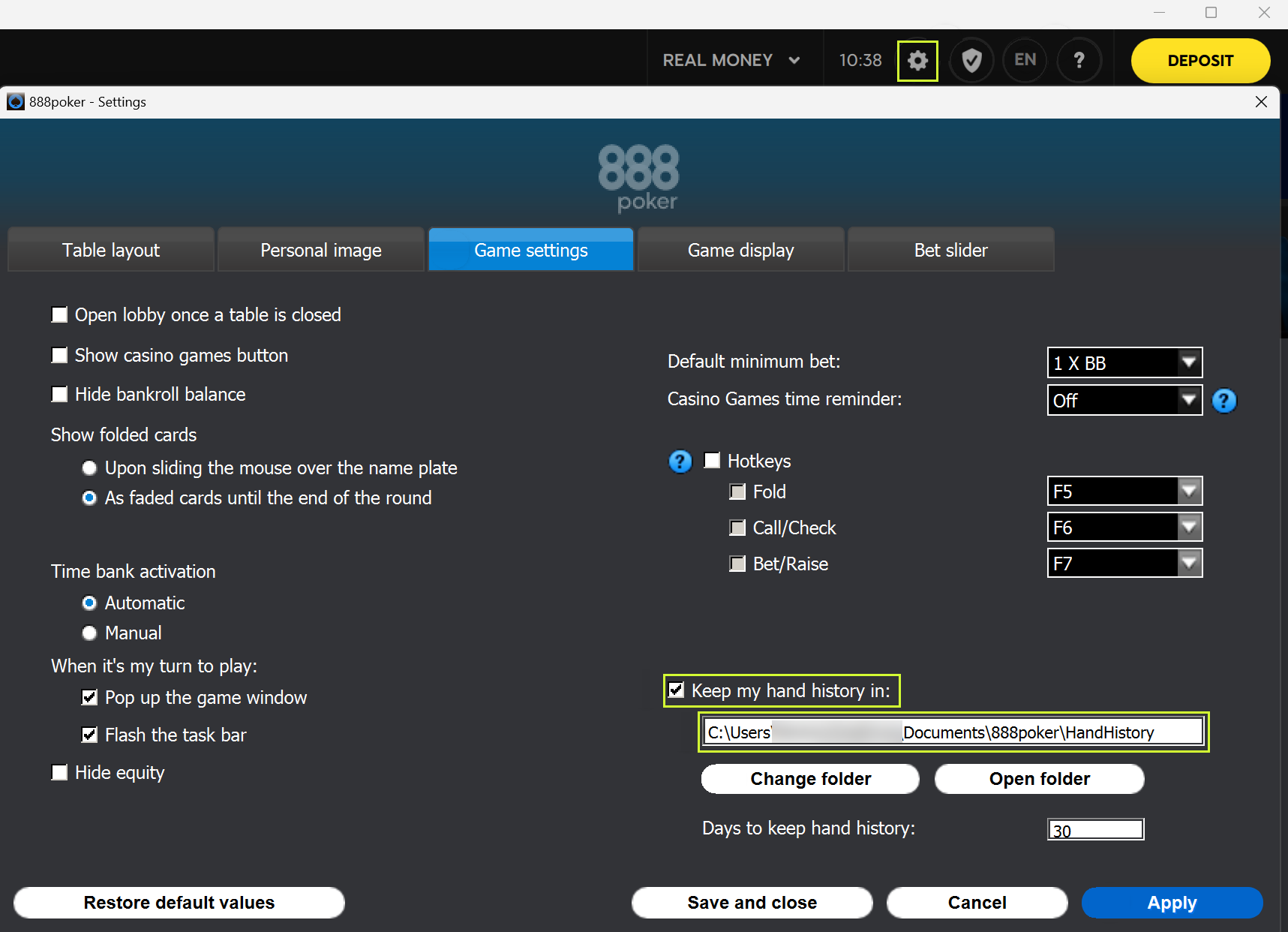
- 4The folder is shown next to it (to change it - the "Change Folder" button). Note the path.
- 5Open that folder and grab the tournament .txt files.
Folder with the files
Documents\888poker\HandHistory
sometimes: AppData\Roaming\PacificPoker\HandHistory
You upload: .txt
ACR / PokerKing / Black ChipWPN network (Winning Poker Network)
- 1Open the client (Americas Cardroom or PokerKing) and sign in.
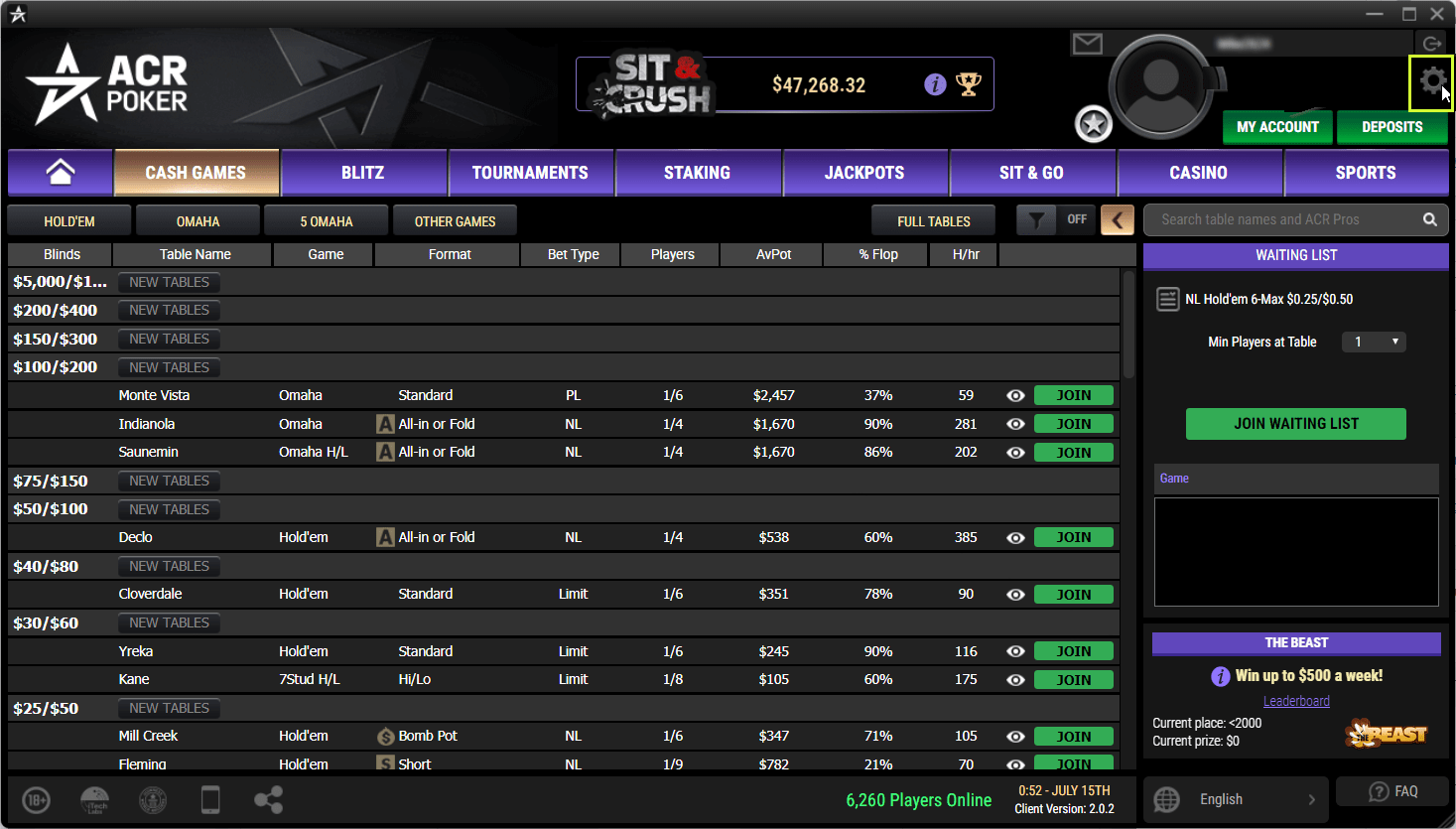
- 2Click the settings gear in the top-right corner → "Hand Histories" in the left menu. Another way: "Game Info" at the top → "View Hand History" → the "Options" button at the bottom.
- 3Tick "Save Hand History".
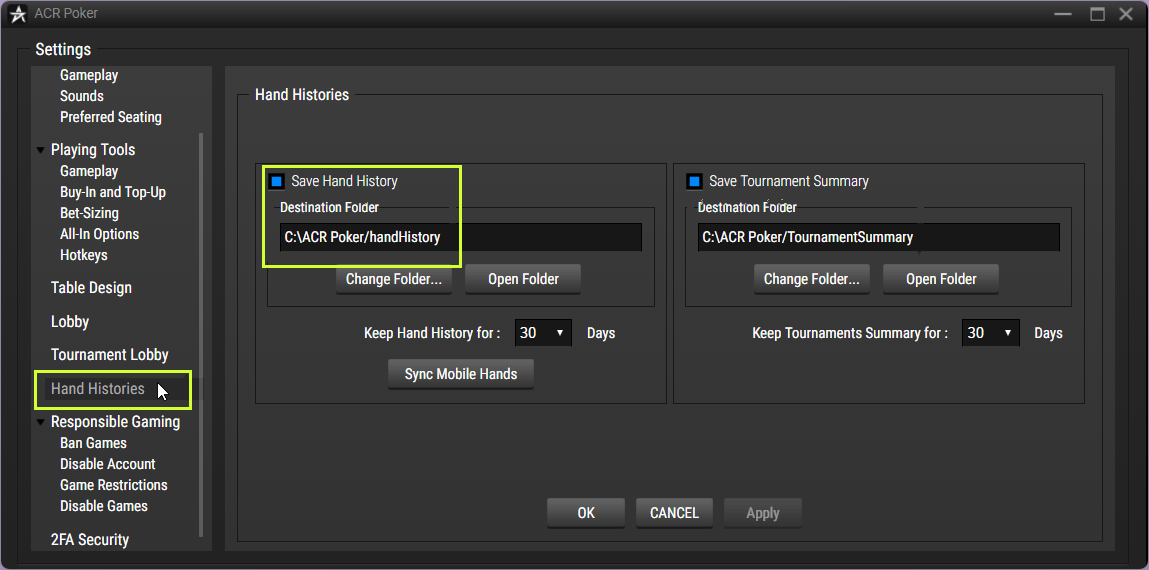
- 4Look at the "Destination folder" field - that's the folder with the files.
- 5Open that folder and grab the .txt files.
Folder with the files
default: C:\AmericasCardroom\handHistory
You upload: .txt
Red Star / Betfair / BetssoniPoker network - any of its skins works
- 1Open the Red Star Poker client (or another iPoker room) and sign in.
- 2In the lobby open "My Account" → "Settings" → the "General" section.
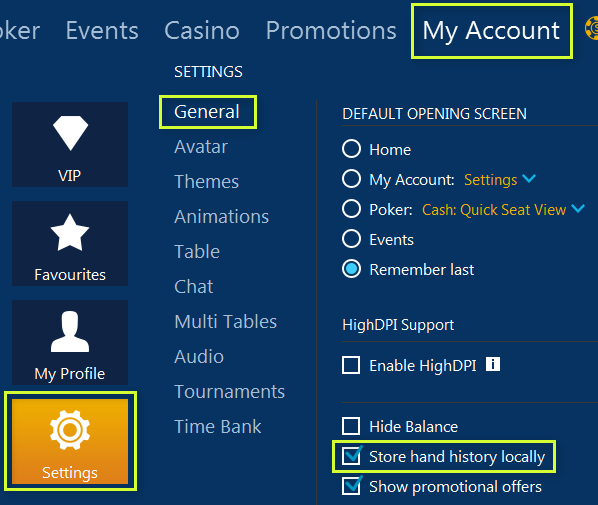
- 3Tick "Store Hand History Locally".
- 4Open the folder with the files (path below; the client name in the path is your room).
- 5Grab the hand-history files - they're .xml or .txt.
Folder with the files
AppData\Local\[client name]\data\[your nickname]\History\Data
You upload: .xml or .txt
The client must be in English - otherwise the history might not save correctly. Windows hides the AppData folder - turn on showing hidden items.
BetOnline / TigerGaming / SportsBettingChico network
- 1Open the BetOnline client (or TigerGaming / SportsBetting) and sign in.
- 2In the lobby, bottom left, open "Settings" → "More options".
- 3In the "History" section enable "Save Hand History" and set the folder to save the hands to.
- 4Play - the .txt files land in that folder. Open it and grab the ones you need.
Folder with the files
the folder you set in the history settings
You upload: .txt
If some file isn't recognized - let us know and we'll fix it.
Files uploaded - next, how the review itself works
Found the files - upload a tournament, the first review is free.
Upload a tournament